Basics
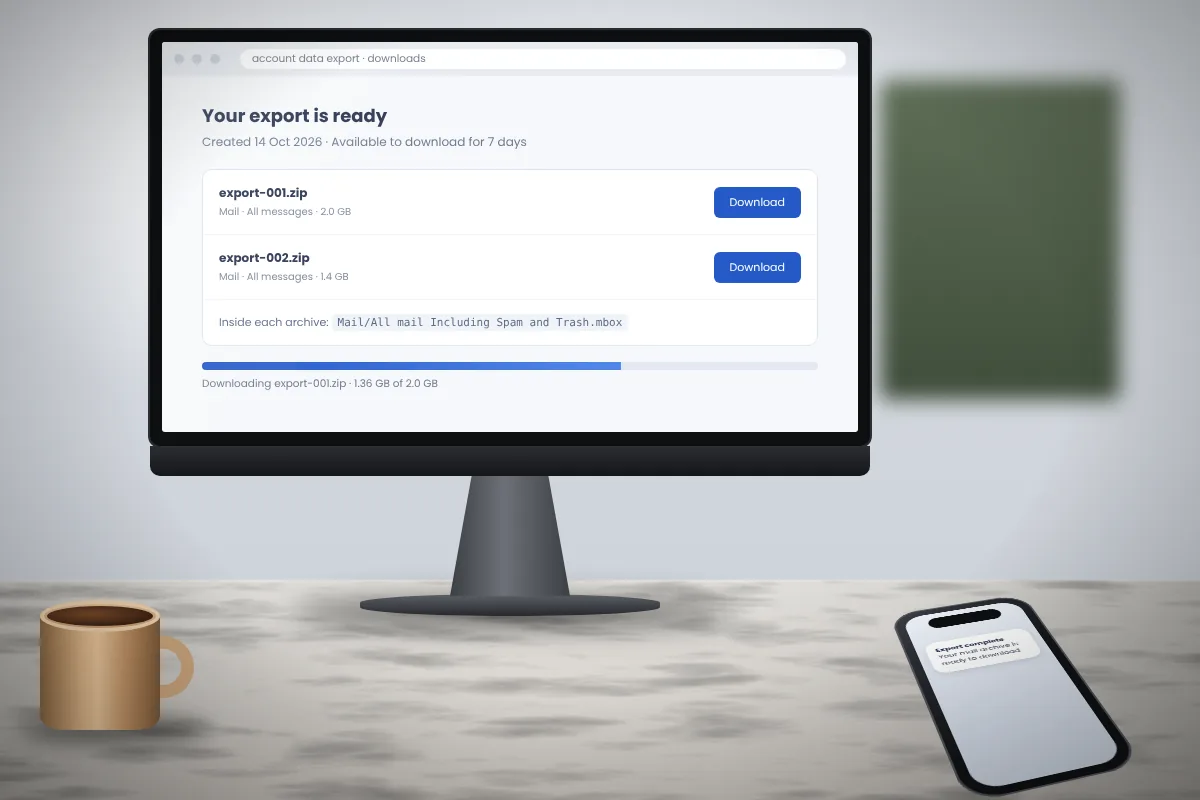
What is an MBOX file? Format, uses and how to view one
A plain-language look at the MBOX format: how messages are stored, where the files originate and what you need to open them.
Read article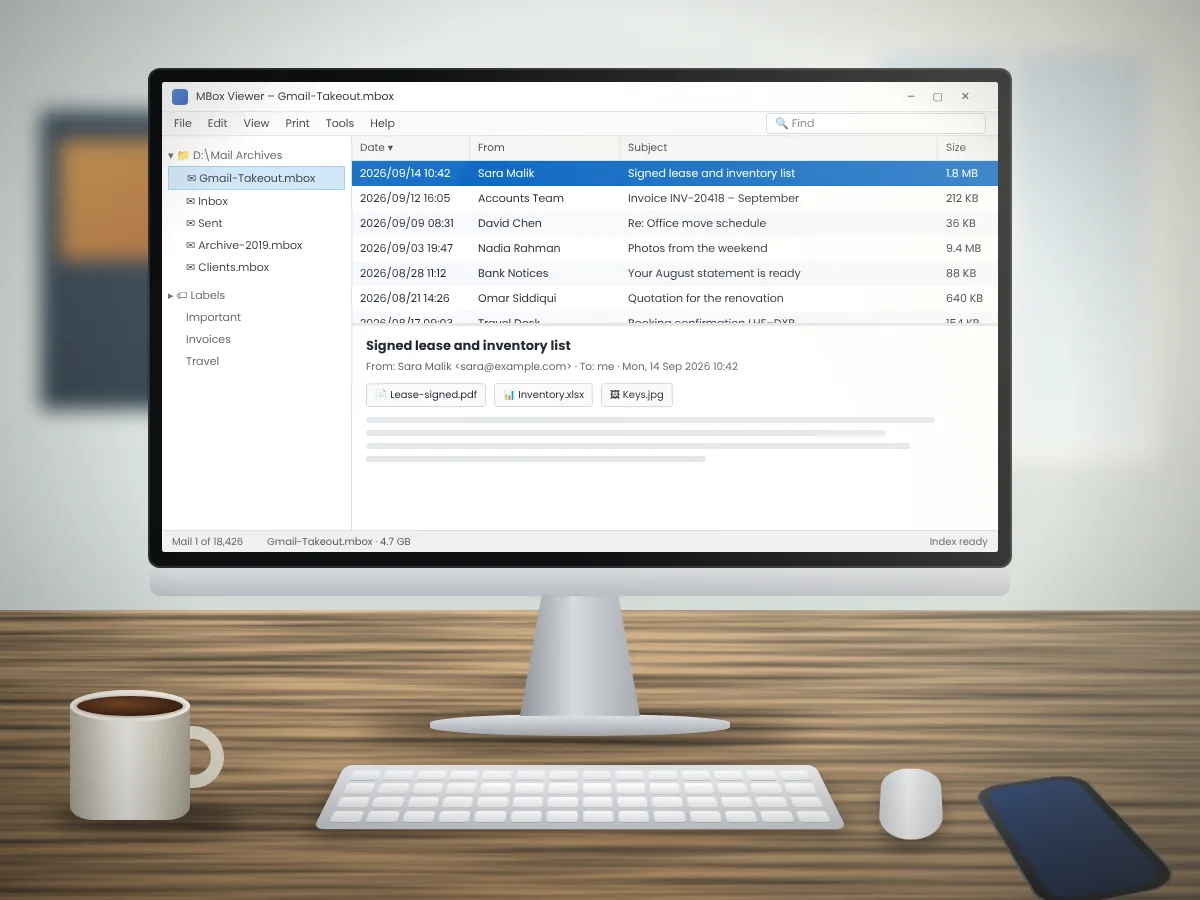
MBox Viewer is a free, open-source tool for Windows that lets you read MBOX email archives, the one-file mailbox backups created by Google Takeout, Thunderbird and many other programs. Select the folder that holds your archive and each message is listed in a sortable view, complete with body text, inline images and attachments. It copes with archives above 4 GB, reads single EML and Outlook MSG messages too, and can save mail as PDF, HTML, CSV, text or EML, all without setting up an email account.
Key facts about the newest MBox Viewer build, taken from the project's SourceForge page. Every user receives the complete program, with no paid tier and no trial limits.
The developers publish updates a few times each year. Version 1.0.3.59 brings a newer MimeKit library with security fixes, better handling of RTF messages and saved column widths in the mail list.
Running Windows XP? Version 1.0.3.47 is the final build that supports it; newer releases need Windows 7 or later.
Most visitors come with an MBOX export, yet MBox Viewer also reads individual messages and Outlook attachments that many viewers ignore.
Archives created by Google Takeout, Apple Mail exports, Unix mail spools and most backup utilities. A single file may contain tens of thousands of emails.
Thunderbird stores folders like Inbox and Sent with no file extension. MBox Viewer detects archives by what is inside them, so they open without renaming.
One email per file, as saved by Outlook, Thunderbird, Windows Mail and many web services. Handy for checking a message someone forwarded to you.
Individual messages dragged out of Outlook for Windows. MSG support is still labelled experimental by the developers, so complicated messages may not render perfectly.
Outlook sometimes wraps attachments inside winmail.dat or .ms-tnef files, and MBox Viewer can list the files packed inside them.
Archives bigger than 4 GB work fine. The first time you open one, an index file with the .mboxview extension is created so later openings load much faster.
Not sure which file you have? Open it in Notepad and check the first line. If it begins with “From ” followed by an address and a date, it is an MBOX archive. If it starts with header lines such as “Received:” or “From:”, it is most likely a single EML message.
MBox Viewer is designed for reading: it helps you locate, open and extract messages from archives, not handle your daily email.
Look up mail by date range, subject, sender, recipients, body text or attachment name, using one filter or several together.
Search within the message you have open and every match is highlighted, which is useful in long threads.
The mail list can be ordered by date, sender, recipient, subject or size.
Gather related emails into a single conversation instead of leaving them spread through the date list.
Google Takeout exports retain Gmail labels, and MBox Viewer reads them so you can browse by label just as you did online.
Attached pictures can be previewed in a moment, and inline images appear right inside the message body.
Open the complete header of any email to check its routing, timestamps or genuine sender address.
Join several archives into one file and remove duplicate messages, for instance after overlapping exports.
Pass a message from the archive to another person without restoring the entire mailbox.
Adjust pane colours and font size. The window layout and column widths are saved for your next session.
Reading is usually just the first step. After you locate the right emails, these options turn them into files that people and other programs can use.
Save one email, a selection or the entire archive, with every message written as its own .eml file.
Print a single mail, a selection or everything to PDF for record keeping, sharing or legal files.
Store emails as web pages that open in any browser with no extra software.
Create a message table that opens in Excel or Google Sheets for sorting and counting.
Keep a light, searchable text copy of your messages without formatting.
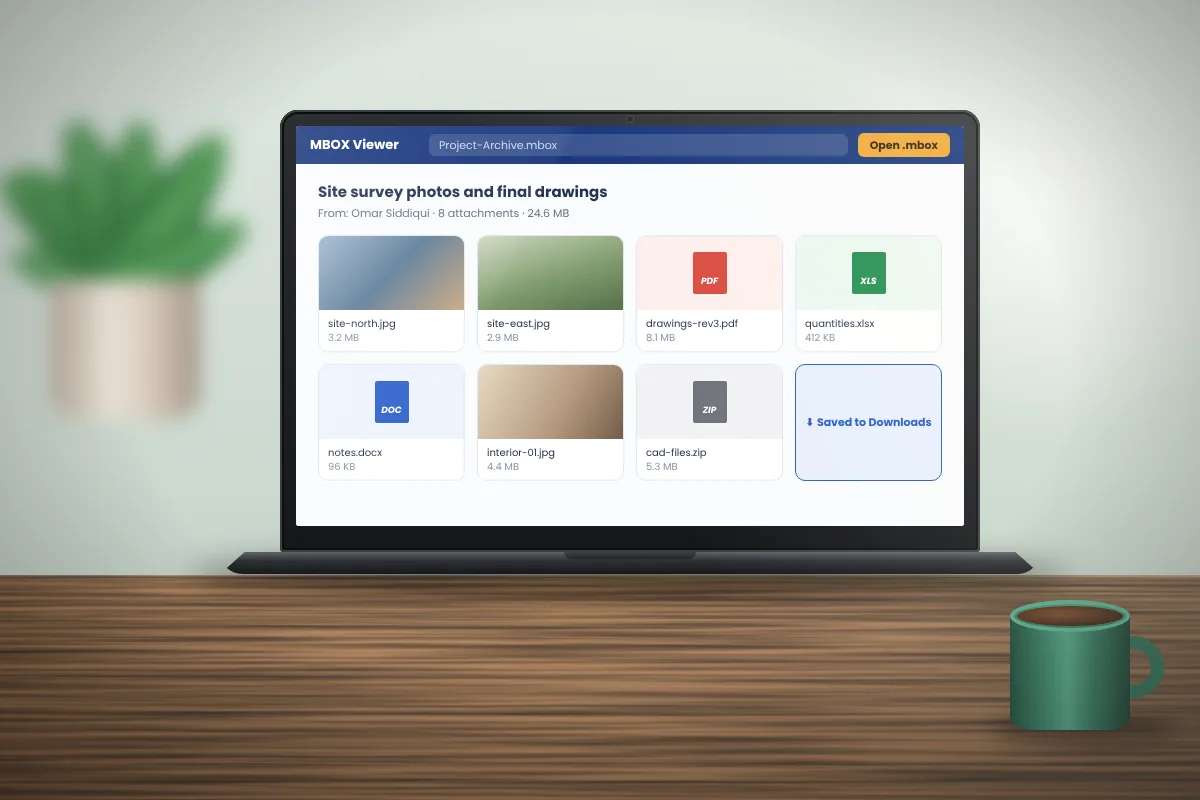
Pull every attachment from every email in the archive into one folder in a single run.
You can also build a new, smaller archive from selected emails, which is useful for handing over one project or one contact without sharing the whole mailbox.
MBox Viewer is portable software. It runs from whichever folder you unzip it to, adds nothing to the Start menu and is removed simply by deleting that folder.
The steps are identical on Windows 7, 8, 10 and 11. Big archives need a little extra time on first opening while the index is built.
To upgrade, download the new release and unzip it into a separate folder. When it works as expected, you can delete the old one.
Go to downloadMBox Viewer is distributed as a ZIP package that you extract to a folder of your choice, with no installer and no registration.
Right-click the ZIP file, choose Extract All and select a short path such as C:\Tools\MBoxViewer. Never launch the program from inside the ZIP.
Go into the mbox-viewer.exe-v1.0.3.59 folder and double-click mboxview64.exe on 64-bit Windows or mboxview.exe on 32-bit Windows. There is no installer to run.
At first launch the program asks for a folder to keep temporary and index files. Choose a drive with plenty of free space if you work with large archives.
Click File → Select folder… and pick the folder containing your archives. They show up in the Mail Archive Tree; click one to load its emails, then click an email to read it.
A few practical pointers that save time and prevent surprises, particularly with large or important mailboxes.
A multi-gigabyte archive must be scanned once in full to create its .mboxview index. Let it finish; every later opening uses the index and is far quicker.
The developers say Windows Defender has sometimes flagged the program wrongly, and that Microsoft fixed those detections within hours. Keep Windows Update current and download only the official release.
Reading does not alter an archive, but the merge and export tools create new files. Work on a copy of important mailboxes and keep the original somewhere safe.
By default, settings are saved in the Windows Registry. A file-based option (MBoxViewer.config) suits anyone who runs the program from a USB drive.
MBox Viewer only runs on Windows. On a Mac, Apple Mail or Thunderbird can import MBOX files, and the guide walks through both routes.
The official MBox Viewer user guide documents every menu and option and is available as a separate 2.4 MB download.
 Download
MBox Viewer v1.0.3.59 is the current official release of the free Windows program. It is packaged as a ZIP with 64-bit and 32-bit builds, needs no installer and has no registration or trial limits.
Free and open source · No registration · No installer
Step-by-step walkthroughs for the situations people meet most often, each written for a specific system or mail source.
A plain-language look at the MBOX format: how messages are stored, where the files originate and what you need to open them.
Read articleFrom requesting the export to reading the mail: how Gmail data arrives through Takeout and how to open the MBOX file inside it.
Read articleHow attachments sit inside an MBOX file, how to save them singly or in bulk, and which files deserve extra caution.
Read articleClear answers about installing, running and using MBox Viewer on Windows.
MBox Viewer is a free Windows application for opening MBOX mail archives. It lists each message in the file, displays text, images and attachments, and lets you search, sort and export mail without importing anything into an email account.
Yes. It is open-source software released mainly under the AGPLv3 licence. Every feature is open to all users, with no trial, premium edition or sign-up.
Current releases target Windows 7 and later, including Windows 10 and 11. The ZIP holds a 64-bit program (mboxview64.exe) and a 32-bit one (mboxview.exe). Version 1.0.3.47 was the last build made for Windows XP.
No. Unzip the download into a folder and launch mboxview64.exe or mboxview.exe from it. To uninstall, delete the folder. Settings live in the Windows Registry unless you switch to the file-based configuration.
Yes. Extract the Takeout ZIP, go to File → Select folder… and choose the Mail folder that holds “All mail Including Spam and Trash.mbox”. Gmail labels in the export are recognised.
Yes. Thunderbird folders such as Inbox and Sent are extension-less MBOX files. MBox Viewer recognises archives by content, so they open directly. Close Thunderbird first and work on a copy.
Archives above 4 GB are supported. When a large file is opened for the first time, the program scans it completely and writes an index file with the .mboxview extension, which makes later openings much faster.
Yes. You can export one email, a selection or all of them as separate EML files, and print them to PDF, HTML, CSV or plain text. Attachments from every email can be extracted in one pass as well.
No, it is built for Windows only. On a Mac you can import MBOX files into Apple Mail or Thunderbird instead, and the guide on this site covers both methods.
The developers say Defender has occasionally flagged MBox Viewer in error, and Microsoft corrected those detections quickly. Update Windows so Defender has the latest definitions, and confirm the file came from the official release linked on this page.