macOS
How to open MBOX files on a Mac without importing
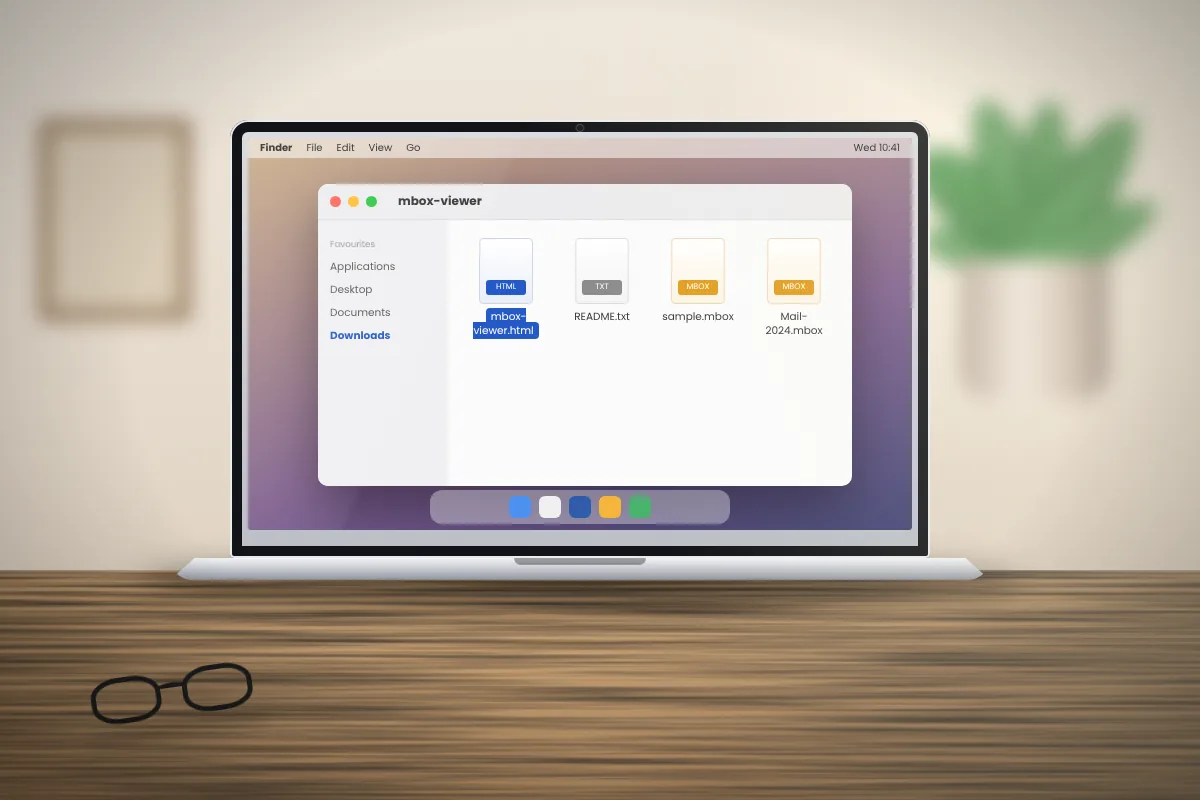
Apple Mail can import MBOX, but you do not have to. This is how to read the files directly on macOS, including .mbox packages.
Read articleWindows cannot open MBOX files on its own. Here are the steps that work, plus the common problems and how to fix them.
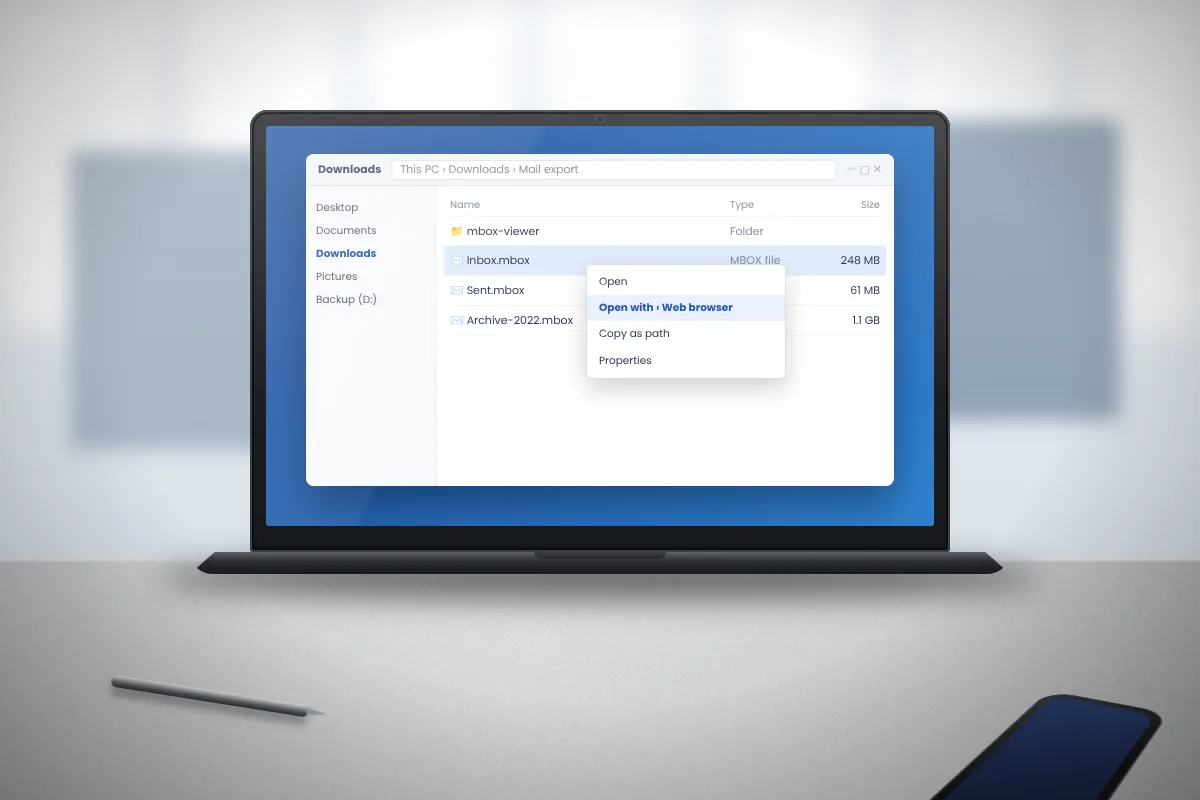
Windows does not include any program that understands MBOX files. If you double-click one, Windows will ask which app to use, and choosing Notepad only shows the raw source. The steps below give you a readable message list in a few minutes.
First, make the file extension visible so you can see exactly what you are working with.
If your MBOX file arrived inside a ZIP, such as a Google Takeout download, extract it first. Right-click the ZIP and choose Extract All. Reading a file directly from inside a ZIP often fails.
Path length tip: Takeout folders have long names. Extract them to a short location such as C:\Mail to avoid “path too long” errors in Windows.
MBox Viewer is a free, open-source Windows program. It runs without an installer and leaves the file untouched.
C:\Tools\MBoxViewer.Attachments are listed with each message, and pictures can be previewed. Large archives take longer the first time while an index is built.
If you want to keep the messages in a full mail program, Thunderbird is free and works well on Windows.
This copies the mail into Thunderbird's profile, so it uses extra disk space. It is a better fit for long-term use than for a one-time lookup.
Classic Outlook for Windows uses PST files and has no option to import MBOX directly. People usually import into Thunderbird first and then move the messages through an IMAP account, or use a paid conversion tool. If you only need to read the mail, a viewer is far simpler.
| Problem | Likely cause and fix |
|---|---|
| The file does not appear in the archive tree | The file may not be MBOX. Open it in Notepad and check that the first line starts with “From ”. |
| The first opening takes a long time | MBox Viewer is building its .mboxview index. Let it finish; later openings are much faster. |
| Windows Defender shows a warning | The developers report occasional false detections that Microsoft corrected quickly. Update Windows and use only the official release. |
| Windows asks for an app every time | That is normal. Open the file from inside the viewer instead of double-clicking it. |
Before trying anything, copy the MBOX file to a second location. The viewer never writes to the file, but some import tools and converters do, and a backup costs nothing.
Apple Mail can import MBOX, but you do not have to. This is how to read the files directly on macOS, including .mbox packages.
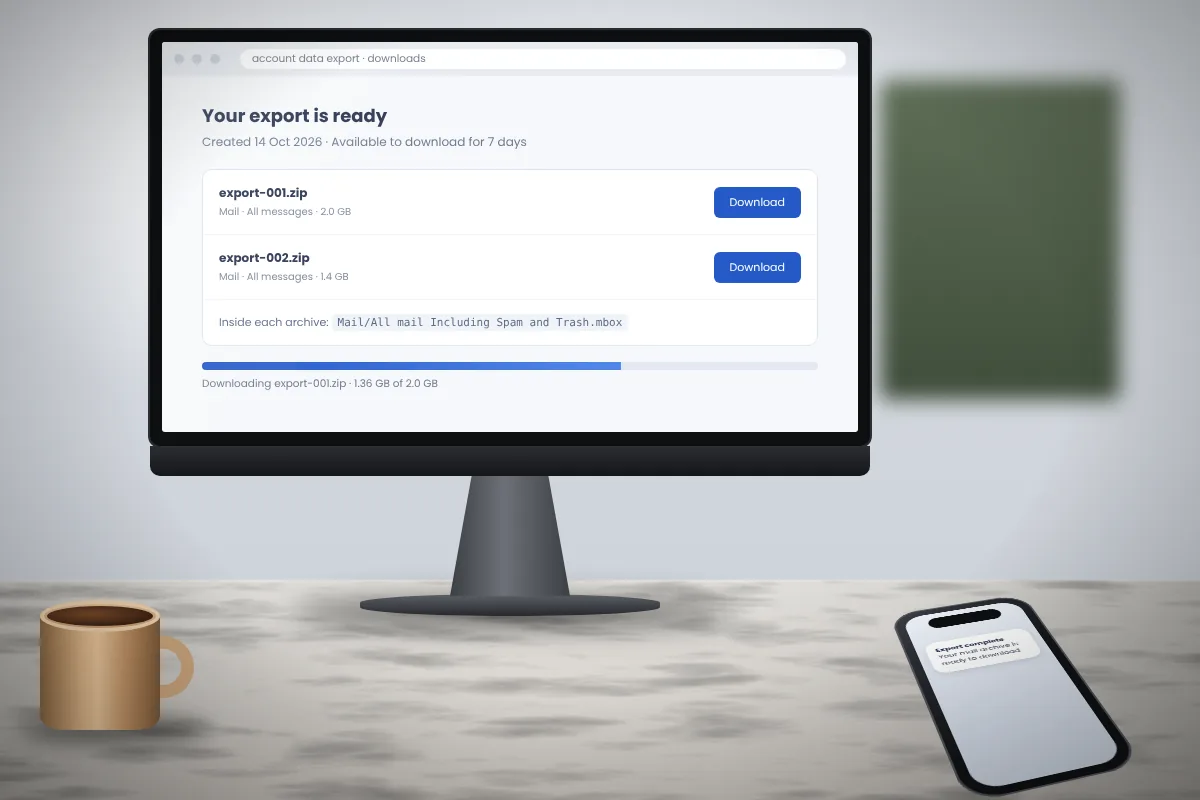
Read articleFrom requesting the export to reading the messages: how Gmail data arrives from Takeout and how to open the MBOX file inside.
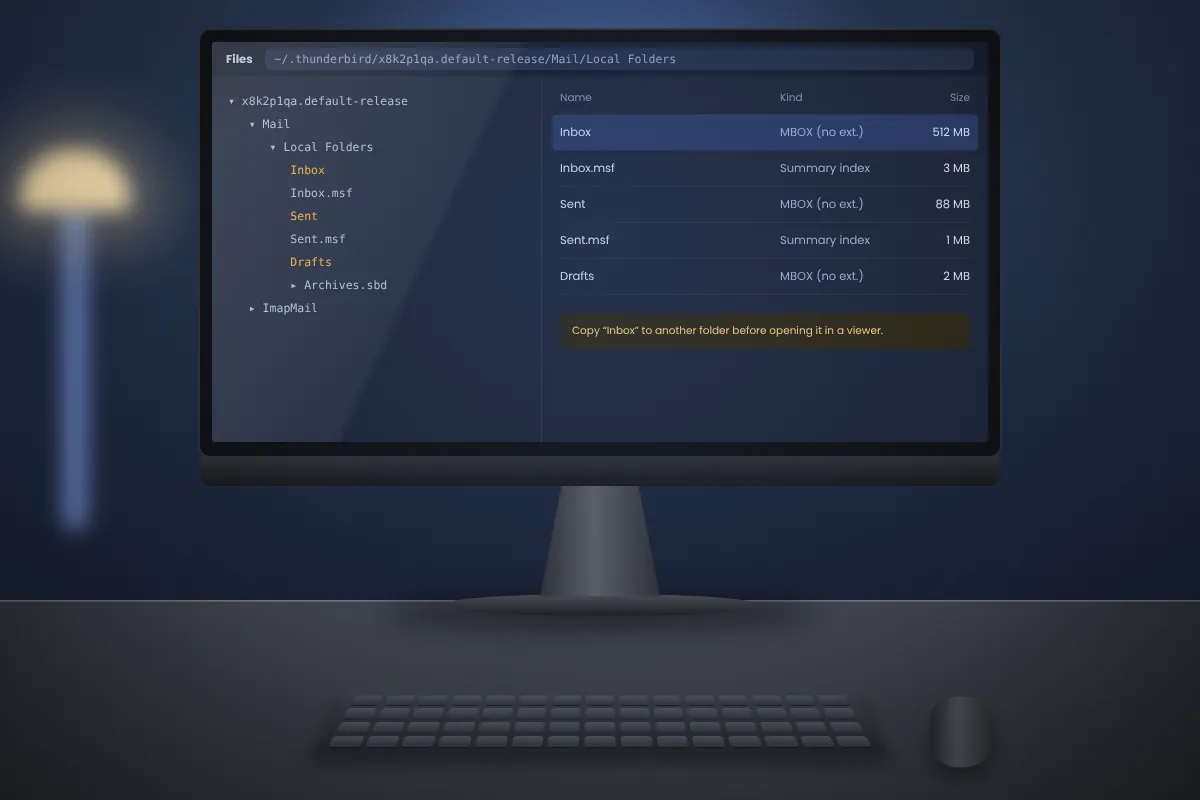
Read articleWhere Thunderbird keeps your mail on Windows, macOS and Linux, which files matter and how to read them without starting Thunderbird.
Read article