Basics
What is an MBOX file? Format, uses and how to view one
A plain explanation of the MBOX format: how messages are stored, where the files come from and what you need to read them.
Read articleWhat to do when an archive is several gigabytes: why it fails to load, how to split it safely and how to store it for years.
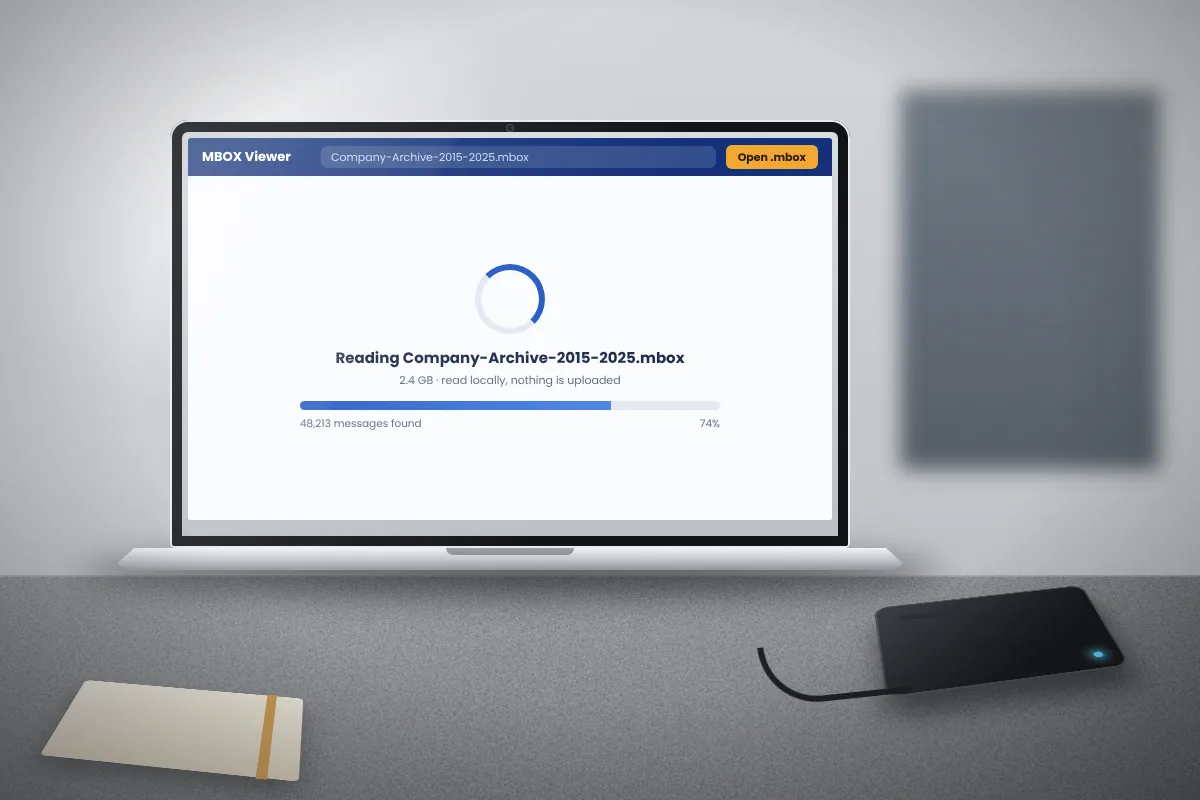
Ten years of email can easily produce an MBOX file of several gigabytes. Big files are perfectly valid, but they push against the limits of memory, file systems and some tools. This article covers what to do about each.
Many tools, including browser-based viewers and some mail programs, read a whole archive into memory before they can list the messages. The amount of free RAM then decides how big a file they can handle.
MBox Viewer for Windows takes a different approach. It supports archives larger than 4 GB and, on the first opening, reads the file once to build an index with the .mboxview extension. That first pass can take several minutes for a big archive; later openings use the index and are much faster.
If a file will not load or takes too long:
mboxview64.exe, on 64-bit Windows.Do not use a generic file splitter. It cuts at a fixed size and will break a message in half. Split at message boundaries instead.
Python, which is preinstalled on most Linux systems and easy to add on Windows and macOS, can do this with a few lines. This example writes files of 5,000 messages each:
import mailbox
src = mailbox.mbox("big.mbox")
part, out = 0, None
for i, msg in enumerate(src):
  if i % 5000 == 0:
    if out: out.close()
    part += 1; out = mailbox.mbox(f"part-{part:03}.mbox")
  out.add(msg)
out.close()
Each part is a normal MBOX file that opens on its own. The original stays unchanged.
Tip: choose a number of messages, not a file size. Archives with many large attachments may need smaller groups, such as 1,000 messages per part.
When you copy a large archive to another drive, make sure the copy is identical. A checksum gives each file a fingerprint; if the fingerprints match, the files match.
| System | Command |
|---|---|
| Windows | certutil -hashfile archive.mbox SHA256 |
| macOS | shasum -a 256 archive.mbox |
| Linux | sha256sum archive.mbox |
Save the result in a small text file next to the archive. Years later you can run the command again and confirm that nothing has changed.
You can also compare message counts. Run grep -c "^From " archive.mbox on both copies, or open each in MBox Viewer and compare the mail count in the status bar.
Large MBOX files are normal. When one will not open, free memory or split it at message boundaries. When you store one, keep several copies, record a checksum and check now and then that it still opens.
A plain explanation of the MBOX format: how messages are stored, where the files come from and what you need to read them.
Read articleWindows cannot open MBOX files on its own. Here are the steps that work, plus the common problems and how to fix them.
Read articleApple Mail can import MBOX, but you do not have to. This is how to read the files directly on macOS, including .mbox packages.
Read article